AWS Command Line Interface (CLI)
👋 Hey there! I'm Gayatri, I have completed a degree in Computer Engineering. I am extensively involved in the fields of DevOps and Cloud computing.
AWS Command Line Interface (CLI)
AWS CLI is a tool which lets you manage AWS services using a command
It's a powerful way to perform tasks and manage systems, often used for programming, system administration, and automation.
You can install AWS CLI in any operating system.
To perform the Aws task in your command Line you need to have aws cli setup install in your system
🔹Install AWS CLI
To install the AWS CLI (Command Line Interface) on your system, you can follow these steps based on your operating system:
1. Windows
Download the Installer:
Go to the AWS CLI MSI installer page.
Download the MSI installer for the AWS CLI version 2.
Run the Installer:
- Double-click the downloaded MSI file and follow the prompts in the installation wizard.
Verify the Installation:
Open Command Prompt or PowerShell.
Run the command:
aws --version.
2. macOS
Using Homebrew (Recommended):
Open Terminal.
Install Homebrew if you don’t already have it:
/bin/bash -c "$(curl -fsSL https://raw.githubusercontent.com/Homebrew/install/HEAD/install.sh)".Install AWS CLI with Homebrew:
brew install awscli.
Verify the Installation:
- Run the command:
aws --version.
- Run the command:
Alternative Method (Direct Installation):
Download the AWS CLI bundled installer from the AWS CLI page.
Extract the tarball and run the installation script.
3. Linux
- Using Package Manager:
- For Debian-based distributions (like Ubuntu):
sudo apt update
sudo apt install awscli
- For Red Hat-based distributions (like CentOS, Fedora)
sudo yum install awscli
Verify the Installation:
- Run the command:
aws --version.
- Run the command:
Post-Installation: Configure AWS CLI
After installing the AWS CLI, you'll need to configure it with your AWS credentials:
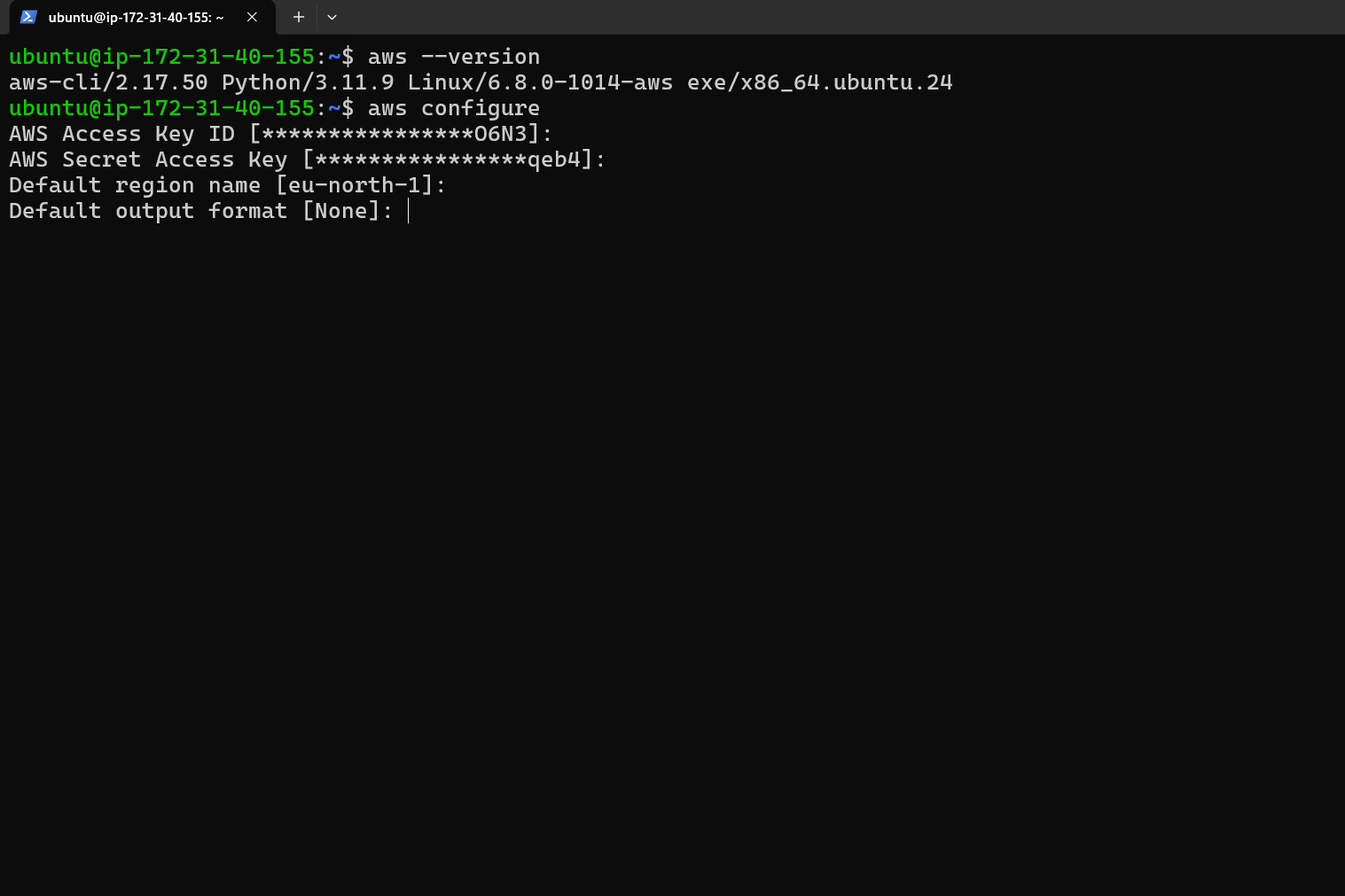
- Run the configuration command:
aws configure
- Enter your AWS Access Key ID, Secret Access Key, default region name, and output format as prompted.
Create a New Access Key
In the IAM Dashboard, click on Users in the left-hand menu.
Select the user for whom you want to create the access key.
Go to the Security credentials tab.
In the Access keys section, click Create access key.
Choose the desired options for the access key, then click Create access key.


