Day 7 - Task: Understanding Package Manager and Systemctl

👋 Hey there! I'm Gayatri, I have completed a degree in Computer Engineering. I am extensively involved in the fields of DevOps and Cloud computing.
💡What is a package manager in Linux?
In simpler words, a package manager is a tool that allows users to install, remove, upgrade, configure, and manage software packages on an operating system. The package manager can be a graphical application like a software center or a command line tool like apt-get or pacman.
You’ll often find me using the term ‘package’ in tutorials and articles. To understand a package manager, you must understand what a package is.
💡What is a package?
A package is usually referred to as an application but it could be a GUI application, command line tool, or a software library (required by other software programs). A package is essentially an archive file containing the binary executable, configuration file, and sometimes information about the dependencies.
💡Different kinds of package managers
Package managers differ based on the packaging system but the same packaging system may have more than one package manager.
For example, RPM has Yum and DNF package managers. For DEB, you have apt-get, aptitude command line-based package managers.
🪄Tasks -
- Install Docker and Jenkins:
Install Docker and Jenkins on your system from your terminal using package managers.
First-Installing Docker
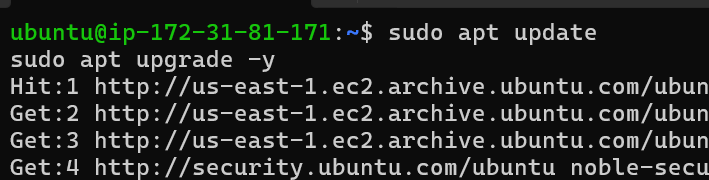
Update the package list and install required packages:
sudo apt update
sudo apt upgrade -y
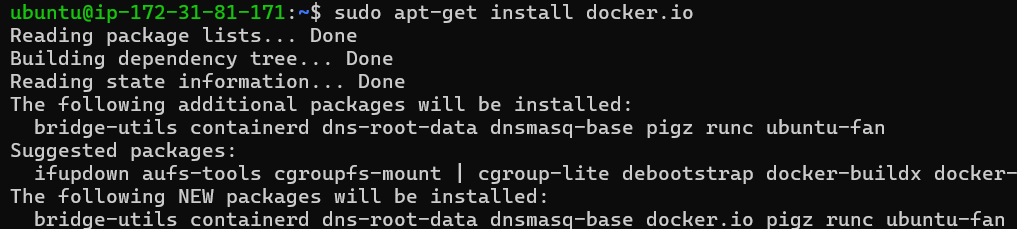
install docker
sudo apt-get install docker.io
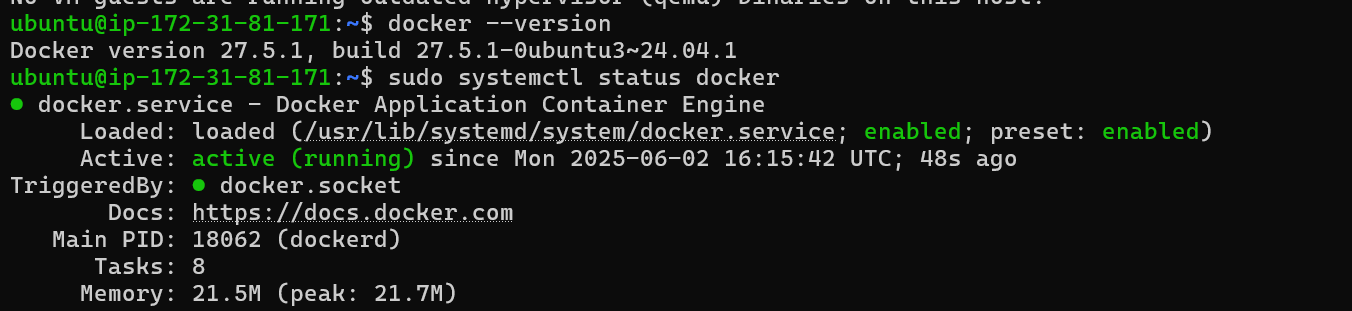
Check Docker installation:
sudo systemctl status docker
Installing Jenkins
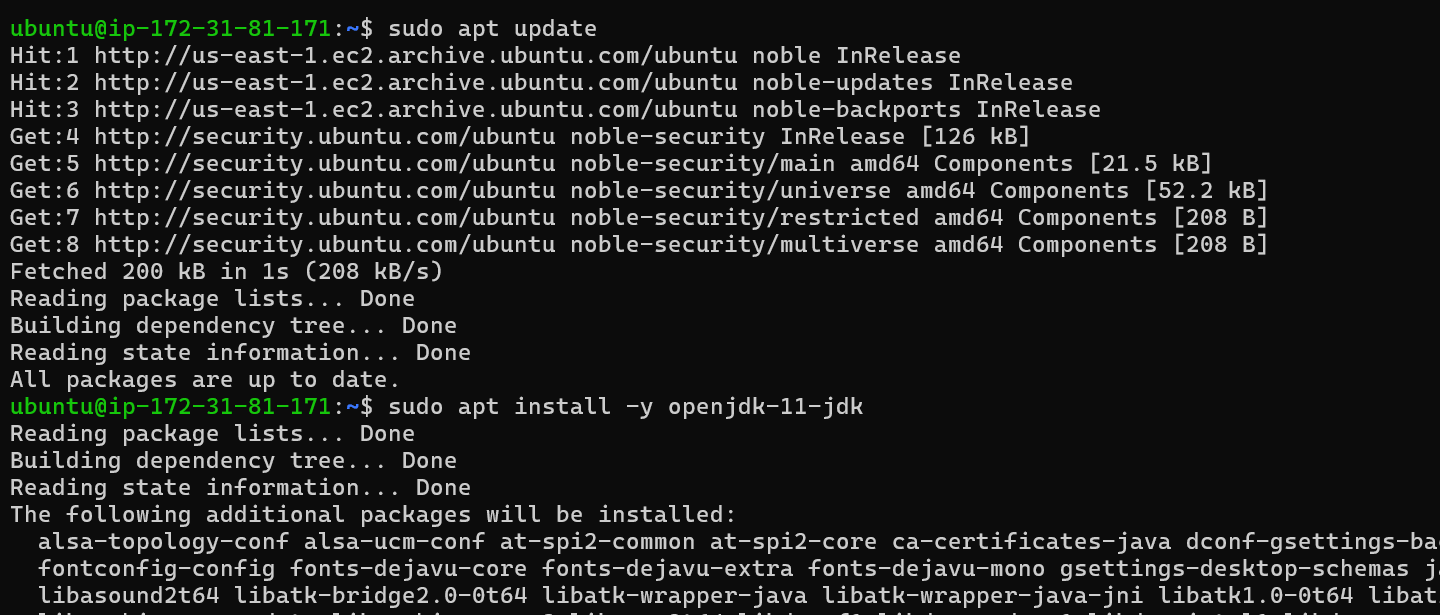
sudo apt update
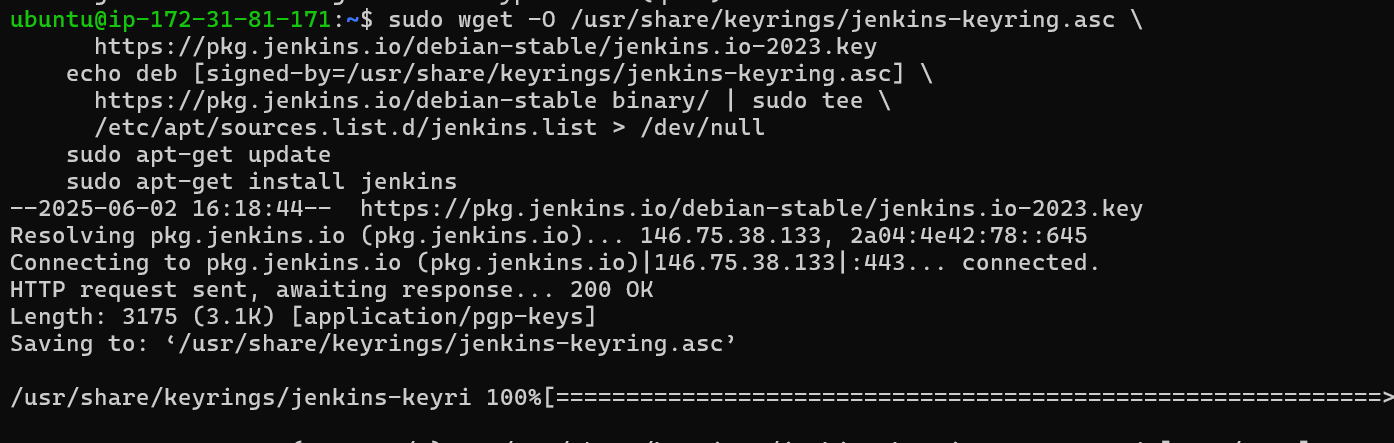
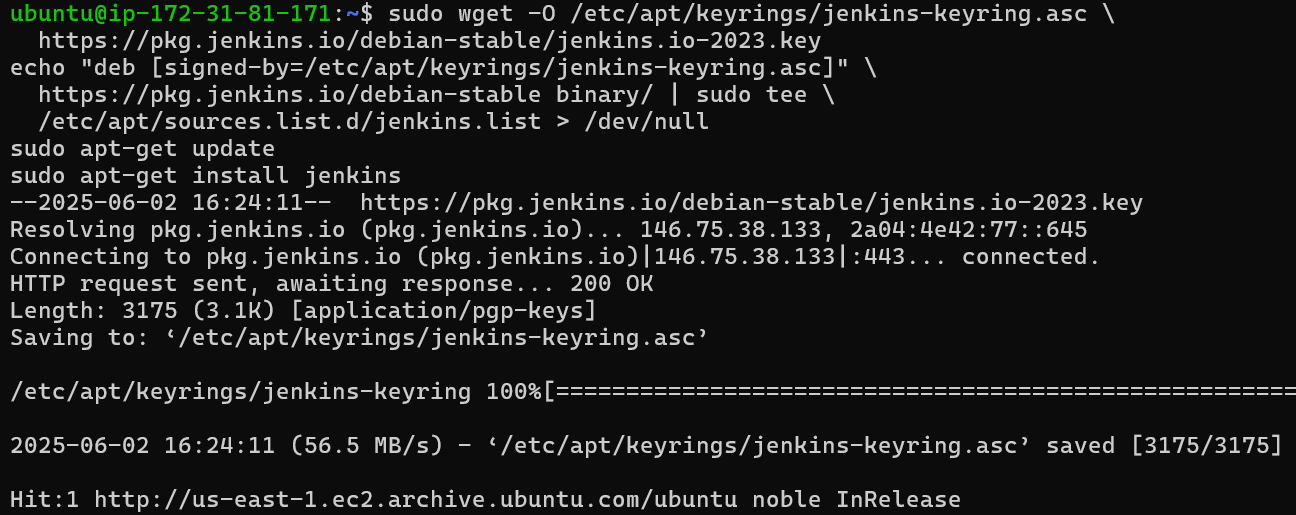
Install Jenkins:
sudo wget -O /etc/apt/keyrings/jenkins-keyring.asc \
  https://pkg.jenkins.io/debian-stable/jenkins.io-2023.key
echo "deb [signed-by=/etc/apt/keyrings/jenkins-keyring.asc]" \
  https://pkg.jenkins.io/debian-stable binary/ | sudo tee \
  /etc/apt/sources.list.d/jenkins.list > /dev/null
sudo apt-get update
sudo apt-get install jenkins
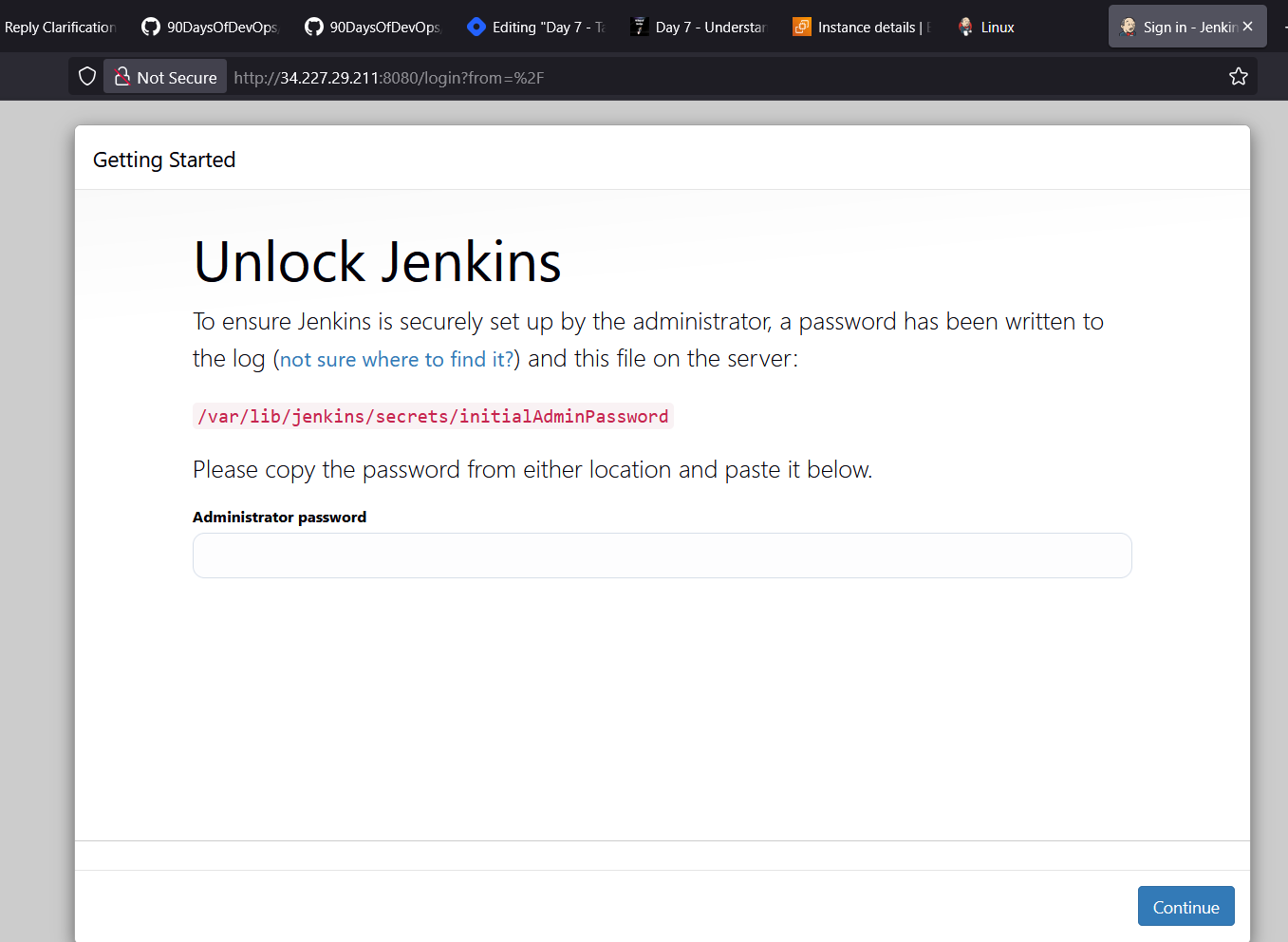
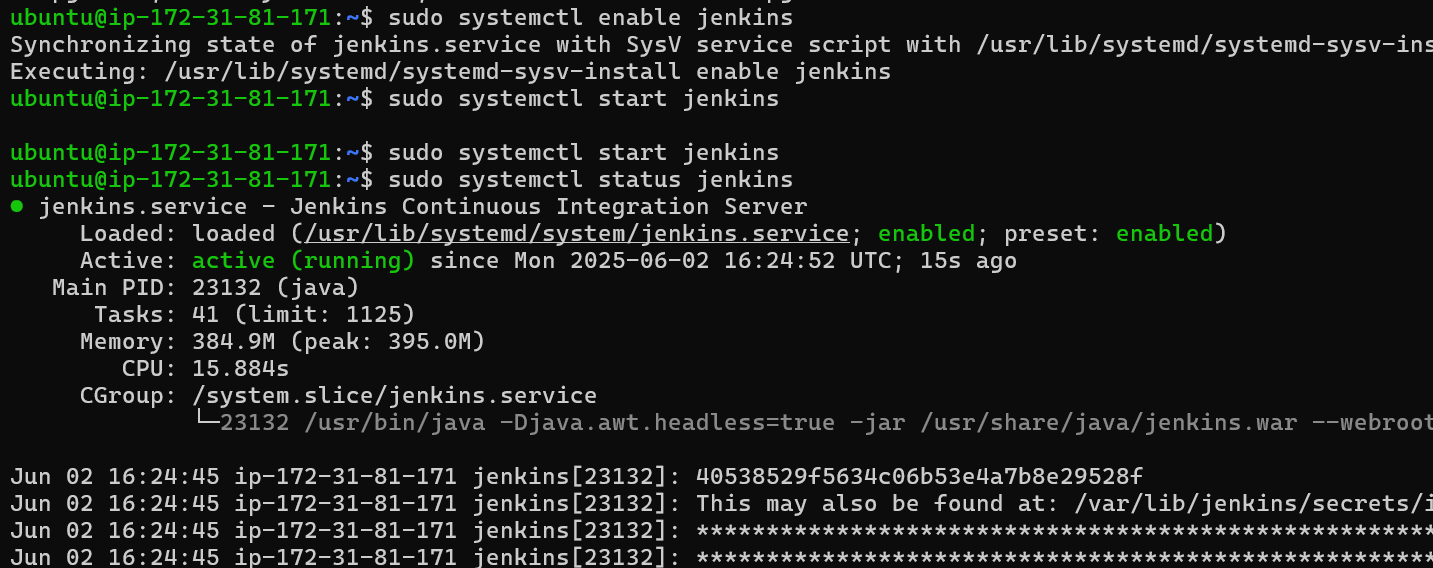
Start Jenkins:
   sudo systemctl enable jenkins
   sudo systemctl start jenkins
   sudo systemctl status jenkins
Note:
First, check whether JAVA is installed or not.
java -version
Systemctl and Systemd
Systemctl is used to examine and control the state of the “systemd” system and service manager. Systemd is a system and service manager for Unix-like operating systems (most distributions, but not all).
Check Docker Service Status:
Check the status of the Docker service on your system (ensure you have completed the installation tasks above).
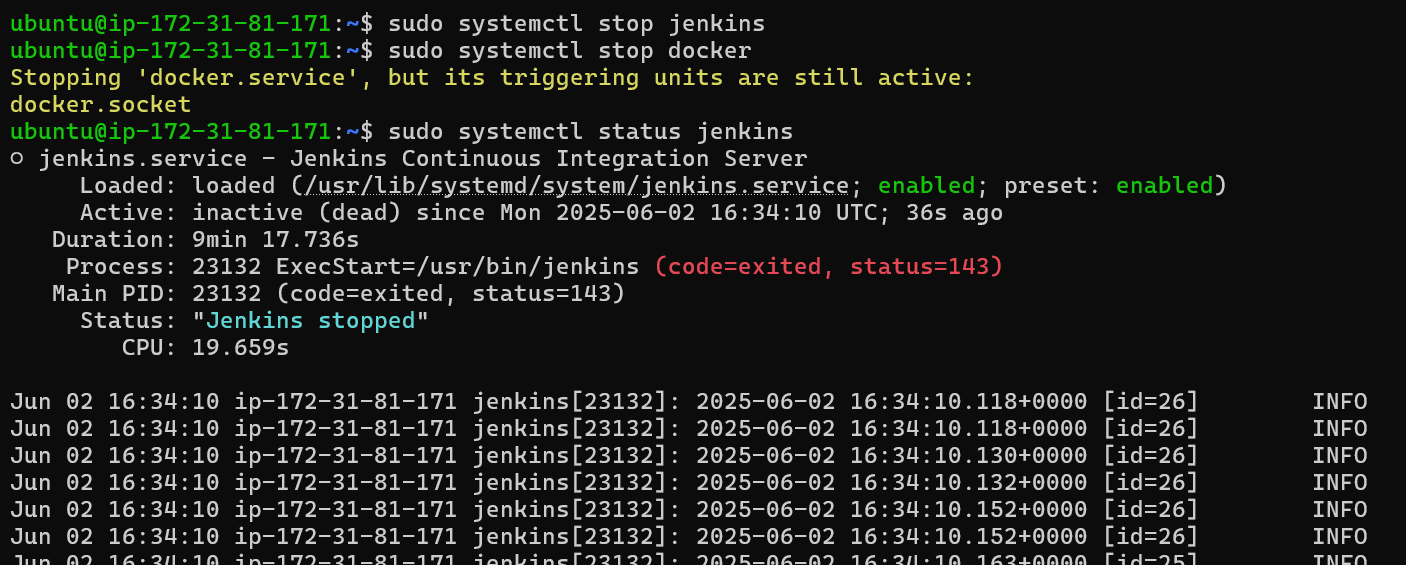
Manage Jenkins Service:
Stop the Jenkins service and post before and after screenshots
Read About Systemctl vs. Service:
Both are commands you use in Linux to start, stop, check, or manage services — like web servers (e.g., Apache), databases (e.g., MySQL), or background jobs.
What’s the difference?
service | systemctl |
| Old way of doing things | Newer, modern way |
| Works on older systems | Works on modern systems (like Ubuntu 20.04, CentOS 7+) |
| Simple, but limited | Powerful and gives more control |
Enable and Disable Services:
Use systemctl to enable Docker to start on boot and disable Jenkins from starting on boot.
Analyze Logs:
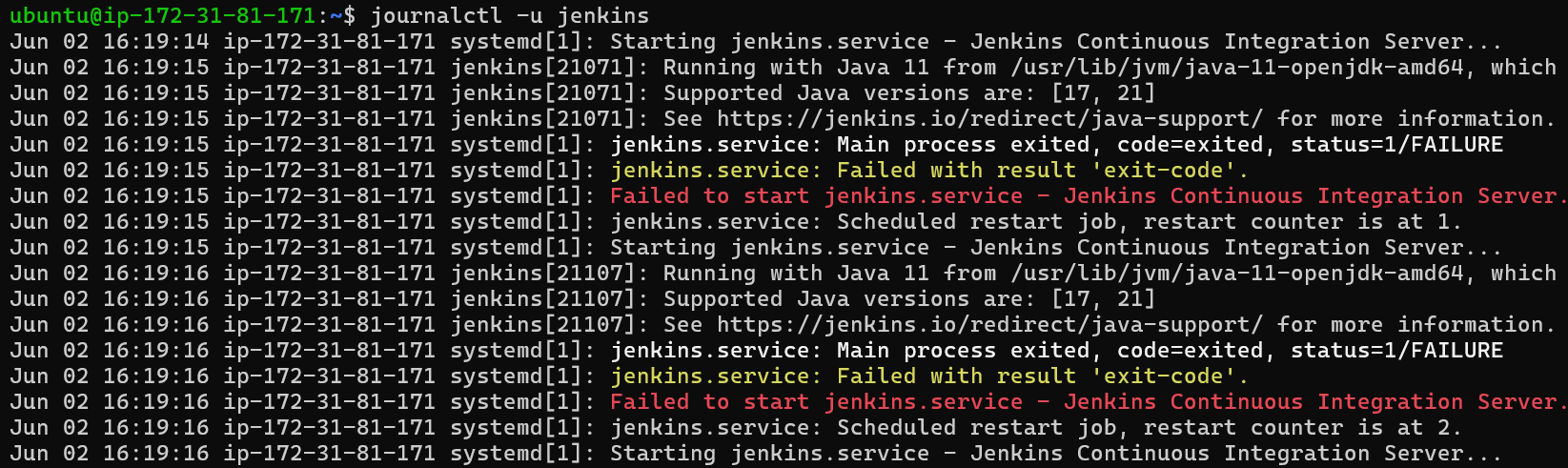
Use journalctl to analyze the logs of the Docker and Jenkins services. Post your findings.

📚 Happy Learning :)😊


